 Prospira Tweaks
Leave hardware-accelerated GPU scheduling on if your graphics card supports it. In every published test it moved the frame rate by about nothing, up a little in one game and down a little in another. The reason to keep it is NVIDIA’s DLSS Frame Generation, which does not run without it. Turn it off only when a program you use misbehaves with it on; OBS is the usual one.
Below: what it changes, the measurements, which cards have it, when switching it off helps, and where the switch is in Windows 11 25H2.
What GPU scheduling actually changes
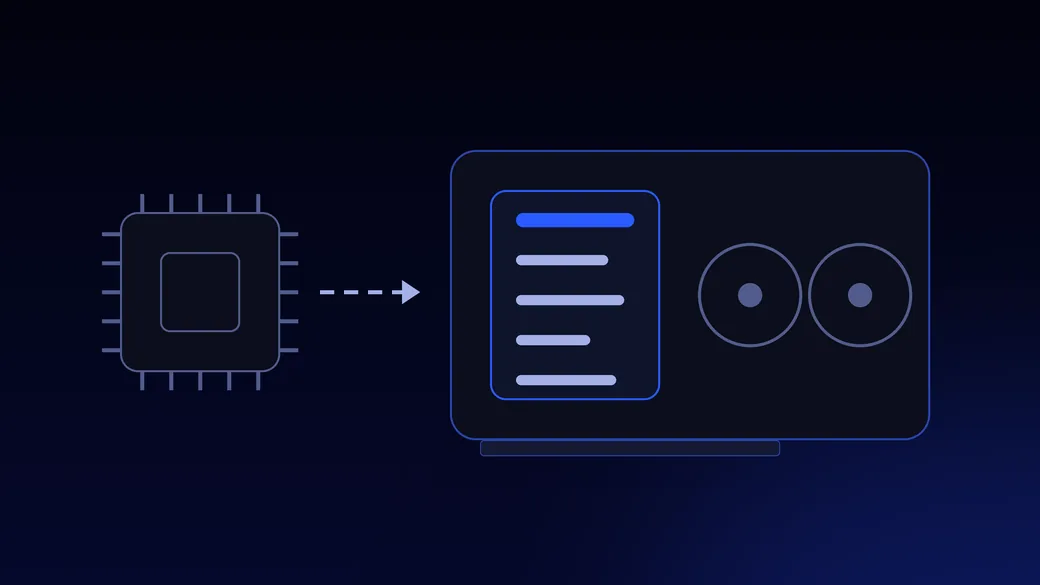
Who plans the graphics card’s work: Windows on the processor, or a scheduler on the card itself.
A game does not hand the graphics card one frame at a time. It hands Windows a queue of work, and something has to decide what runs next. For years that was Windows, running on the processor. Hardware-accelerated GPU scheduling (HAGS) moves most of that job to a small scheduler built into the graphics card.
Microsoft introduced it in the Windows 10 May 2020 Update. It needs a graphics card with that scheduler and a driver of the WDDM 2.7 generation or newer. Microsoft’s own announcement set the expectation: for most users the change “will be transparent”, and they should not notice any significant difference.
What it does to the frame rate
Close to nothing, in every test we found. Up a little, down a little, depending on the game.
GamersNexus measured it in July 2020. In Hitman 2 the average was 138.0 frames per second with scheduling off and 137.6 with it on. In F1 2019 on a budget Intel Core i3 it went from 167 to 163, about 2.4 per cent lower.
Tom’s Hardware tested five games the same week on an RTX 2080 Ti and a GTX 1050 and called the difference “basically nothing”: 0.03 per cent slower on the fast card, 0.73 per cent on the slow one. Two years later, BabelTechReviews ran about 26 games on an RTX 3080 under Windows 11 and found the results too inconsistent to recommend turning it on for every game.
So it is not a way to more frames. A Windows setting rarely is, when the game is already keeping the graphics card busy. If you want frames, the settings inside the game and the driver are where they are; the Windows 11 gaming guide goes through the rest in order.
The one strong reason to leave it on: frame generation
NVIDIA’s DLSS Frame Generation will not run with GPU scheduling off.
NVIDIA’s programming guide for DLSS Frame Generation lists it as a requirement: hardware-accelerated GPU scheduling must be enabled in Windows. A game’s menu may not say why frame generation is unavailable, so people who switched scheduling off months ago because a guide told them to rarely connect the two.
We found no AMD or Intel document that makes their own frame generation depend on it, so this reason is about NVIDIA cards.
Which graphics cards have the switch
Recent NVIDIA cards, AMD Radeon RX 7000 and Intel Arc B-Series. If the switch is missing, your card or driver does not support it.
Windows only shows the switch when the graphics card and its driver both support the feature. What the makers have published:
| Graphics card | Has the switch |
|---|---|
| NVIDIA GeForce, from driver 451.48 (June 2020) | Yes |
| AMD Radeon RX 7900, 7800 and 7700, from Adrenalin 23.12.1 | Yes |
| AMD Radeon RX 7600, from Adrenalin 24.1.1 | Yes |
| Intel Arc B-Series, Windows 11 22H2 or newer | Yes |
| Intel Arc A-Series | No |
NVIDIA’s release notes do not list which generations qualify. Tom’s Hardware reported at the time that it needs a Pascal card (GTX 10 series) or newer. AMD’s Radeon cards need Windows 11 version 22H2 or newer for it. For any card not in the table, the quickest answer is to look for the switch.
Is it on by default? That is not one Windows rule. The driver tells Windows whether scheduling should start enabled on that card, so two PCs with the same Windows can differ. Check the switch rather than trusting a guide that says it is always on or always off.
When turning it off helps
When a program you use misbehaves with it on, OBS above all. Check the driver first.
The official advice to switch it off is narrow. OBS Studio’s knowledge base says HAGS may cause performance problems and failures with OBS and hardware encoders, and suggests turning it off as a troubleshooting step, not as a default. If you stream or record and see dropped frames or encoder errors, that is the case for trying it.
Driver bugs come and go too. AMD’s Adrenalin 26.10.2 notes, from 30 October 2026, list a fixed issue: occasional driver timeouts while playing video on Radeon RX 7000 cards with scheduling on. If that sounds like your PC, update the driver before you touch the switch.
- Update the graphics driverSome problems blamed on HAGS were driver bugs, fixed in later drivers.
- Check frame generationIf a game you play uses it, turning scheduling off disables it there.
- Turn it off and restartThen test the program that misbehaved.
- No difference?Turn it back on. It costs nothing to leave it on.
How to switch it on or off
Settings, System, Display, Graphics, under Advanced graphics settings. Then restart.
By hand: Settings, System, Display, Graphics. Under Advanced graphics settings, turn Hardware-accelerated GPU scheduling on or off, then restart the PC. The change does not take effect until you do. Older guides send you to a link called Change default graphics settings: Microsoft moved the switch in 2023, and Windows 11 25H2 shows it directly on the Graphics page.
If there is no such section on your Graphics page, your graphics card or its driver does not support scheduling, and there is nothing to change.
In Prospira: the Advanced tab has the same switch, called GPU Scheduling (HAGS), and shows what Windows has set right now. It also needs a restart. Undo puts back exactly what was there before, and the few changes that cannot be undone say so before they run.
Questions people ask
The four that come up every time.
Does HAGS increase FPS? Not in any test we found. Measured differences run from a fraction of a per cent up to a few per cent down, depending on the game.
Is HAGS needed for DLSS 3? For its frame generation part, yes. NVIDIA lists it as a requirement for DLSS Frame Generation.
Should I turn off HAGS for streaming? Only if OBS gives you trouble with it on. OBS suggests it as a troubleshooting step, not as a rule.
Why is the HAGS option missing? Windows hides it when the graphics card or the driver does not support it. Update the driver; if it is still missing, your card does not have the feature.
Sources
Everything above can be checked against these.
Hardware Accelerated GPU Scheduling, Microsoft DirectX Developer Blog, 30 June 2020
Navigating the redesigned Graphics settings page, Microsoft DirectX Developer Blog, 19 January 2023
D3DKMT_WDDM_2_7_CAPS (HwSchEnabledByDefault), Microsoft Learn, 28 July 2021
Release 450 driver for Windows, version 451.48: release notes, NVIDIA, 24 June 2020
Streamline DLSS-G Programming Guide, NVIDIA, updated guide
AMD Software: Adrenalin Edition 23.12.1 release notes, AMD, December 2023
AMD Software: Adrenalin Edition 24.1.1 release notes, AMD, January 2024
AMD Software: Adrenalin Edition 26.10.2 release notes, AMD, 30 October 2026
Is Hardware-Accelerated GPU Scheduling supported by Intel Arc Graphics?, Intel Support, 24 July 2025
Windows 10 Hardware-Accelerated GPU Scheduling Benchmarks, GamersNexus, 4 July 2020
Tested: Nvidia GPU Hardware Scheduling with AMD and Intel CPUs, Tom’s Hardware, 25 June 2020
Hardware Accelerated GPU Scheduling Performance Revisited, BabelTechReviews, 3 May 2022
Hardware-Accelerated GPU Scheduling (HAGS), OBS Knowledge Base, 7 May 2023