 Prospira Tweaks
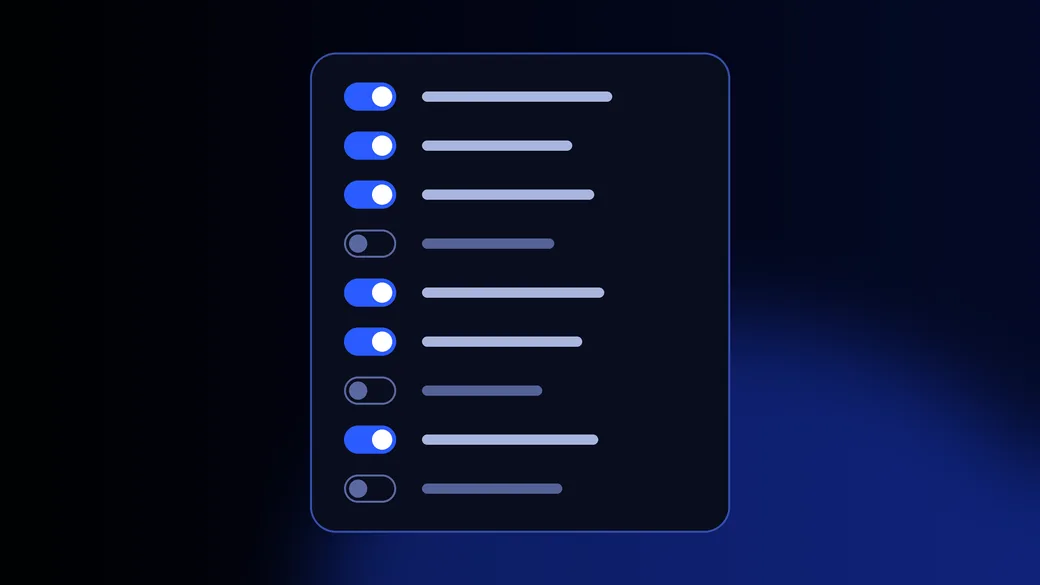
To optimize Windows 11 for gaming, change these nine settings in this order, one at a time, and measure after each. The first ones matter most. Below each step: what it changes, what it was measured to do, and how to put it back.
- The graphics driverThe newest one from NVIDIA, AMD or Intel
- Game ModeOn, and left on
- GPU schedulingOn if you use frame generation
- Windowed-game optimizationsOn for borderless and windowed games
- PowerPlugged in on a laptop; Balanced on a two-die Ryzen X3D
- What runs beside the gameStartup apps and background recording trimmed
- Memory speedXMP or EXPO on in the BIOS
- The monitorIts full refresh rate, and a frame cap
- Resizable BAROn for Intel Arc; elsewhere your choice
Two things this guide does not do: switch off security features for frames, and promise a number. Memory integrity gets its own section below, with the measured cost.
The menu paths below were checked against Windows 11 25H2, build 26200.6584, on .
Before you change anything: a restore point and a measurement
Make a way back, measure where you start, and change one setting at a time.
A restore point first. Search the Start menu for Create a restore point, check that System Protection is on for drive C, and click Create. If a change goes wrong, System Restore puts Windows settings and drivers back to that moment.
Then measure. The average frame rate hides the problem most people have. Stutter is a few frames that take far longer than the rest, so look at frame times, not only frames per second. The Game Bar performance widget (Windows key and G) shows the frame rate. PresentMon, a free tool from Intel, records every frame’s time.
One change at a time. In the forum threads we read, people who changed many things at once could no longer tell which one had helped.
- Make a restore pointSo there is a way back.
- Measure your starting pointFrame times in the game you play.
- Change one settingThen play the same scene again.
- Keep it or put it backAnd write down which.
Not sure the problem is Windows at all? The two-minute stutter quiz points at the likely cause first.
1. The graphics driver
The newest driver from the maker, not the one Windows Update picked.
The driver Windows Update installs is often older than the one NVIDIA, AMD or Intel publishes. Install the newest one from the maker’s site or app, then restart.
Expect the first match after any driver update to stutter. The update clears the driver’s shader cache, so the game compiles its shaders again. Epic measured its own game taking 20 to 30 seconds longer to load a match on an empty cache. It settles after a match or two on the same map.
When to go back. If games got worse right after a driver update and stay worse, open Device Manager, Display adapters, your card, Properties, Driver, and choose Roll Back Driver. If it started after a Windows update, Microsoft lists confirmed problems on its Windows release health pages.
2. Game Mode: on, and leave it
It pauses Windows Update work and notifications while you play. Expect smoothness, not more frames.
Where: Settings, Gaming, Game Mode. It is on by default, and Windows switches it on for most games by itself.
What it does, in Microsoft’s words: it temporarily reallocates the resources that background work such as Windows Update uses, and disables their notifications.
What it is worth. In a published CS2 test it moved the frame rate by 0.7 per cent, within noise. Its value is fewer interruptions, not a higher number. On AMD Ryzen X3D processors with two dies it matters more: Game Mode and Game Bar are how the chipset driver knows a game is running and parks the cores without the extra cache.
In Prospira: the Advanced tab has the same switch and shows what Windows reports right now.
3. Hardware-accelerated GPU scheduling
Your graphics card schedules its own work. The frame rate barely moves; NVIDIA frame generation needs it.
Hardware-accelerated GPU scheduling (HAGS) moves the queue of graphics work from the processor to a scheduler on the graphics card itself. Microsoft introduced it in 2020 and said the change should be transparent: games should not notice it.
The measurements agree. With it off, 138.0 frames per second; with it on, 137.6.
The one strong reason to leave it on: NVIDIA’s frame generation does not run without it. That requirement is written only in NVIDIA’s developer documentation, which is why people switch scheduling off and lose frame generation without connecting the two.
Where: Settings, System, Display, Graphics, under Advanced graphics settings. It needs a restart. If the switch is not there, your graphics card or its driver does not support it. Turn it off only if a game misbehaves with it on, and check whether that game uses frame generation first.
In Prospira: the Advanced tab has this switch too.
Which cards have the switch, and the few cases where turning it off helps: GPU scheduling, on or off.
4. Optimizations for windowed games
On if you play in a borderless or ordinary window. It does nothing in exclusive fullscreen.
Older DirectX 10 and 11 games in a window used to be shown through a slower path than fullscreen ones. This switch moves them to the newer flip model, which Microsoft says lowers frame latency and lets those games use Auto HDR and variable refresh rate. DirectX 12 games already work this way.
Where: Settings, System, Display, Graphics, under the default settings: Optimizations for windowed games. Restart the game afterwards. If Auto HDR is on, this switch is on too, and it cannot be turned off until Auto HDR is.
In Prospira: the Advanced tab has this switch as well.
5. Power mode and power plan
On a laptop, plug in. On a desktop the plan matters less than the guides say, and on a two-die X3D Balanced is right.
Laptops. Plug in and choose Best performance under Settings, System, Power and battery, Power Mode. (On a desktop the page is called just Power.)
Desktops. The usual advice is the High performance plan and unparking every core. Whether cores park is set per processor by the chip maker’s power settings, and Microsoft says that on Intel processors from Broadwell on the old power plan parameters have minimal impact on actual frequency. The famous 15 per cent dates from 2017, when Windows 10’s Balanced plan parked most of a first-generation Ryzen, and AMD fixed it that April.
The measurements behind this are in how to speed up a PC when the hardware is good.
6. What runs beside the game
Trim what starts with Windows and the recording you never use. Do not switch services off in bulk.
Startup apps. Task Manager, Startup apps. New PCs come with the maker’s tools for lights, updates and trial antivirus. Switch off the ones you do not use. Keep the audio and touchpad drivers.
Lighting and motherboard tools deserve a second look. In August 2026 a group of games started crashing. Microsoft investigated and found the cause in a driver shipped by RGB lighting software, not in Windows Update.
Background recording. Game Bar can keep recording the last few minutes so you can save a clip after the fact. If you never save those clips, turn it off: Settings, Gaming, Captures. On a two-die Ryzen X3D, keep Game Bar itself on.
Overlays. Discord, Steam and graphics-driver overlays draw on top of the game. If a game stutters only with one of them on, you have your answer.
What not to do: switch off Windows services in bulk. In the 72 threads we read, no debloat script or optimizer fixed anything, and in one a program that promised to lower CPU use made the stutter worse. What the popular tools change, and what their undo really puts back, is in is WinUtil safe?
In Prospira: the General tab can turn Game Bar and its recording off.
7. Memory speed: XMP or EXPO
Until it is on, the memory runs at its safe default. How much it is worth depends on the processor.
A DDR5-6000 kit does not run at 6000 out of the box. It stays at a slower default until XMP (Intel) or EXPO (AMD) is switched on in the BIOS, usually one switch on its first page. Check first: Task Manager, Performance, Memory, the Speed line.
It is memory overclocking, and AMD says damage from an EXPO profile is not covered by warranty. It is still the right setting to enable, and it helps stutter more than the average. More first-day checks are in ten things to check on a new PC.
8. The monitor: full refresh rate and a frame cap
A 144 Hz monitor left at 60 Hz feels like stutter. Then cap the frame rate just under the refresh rate.
Windows tends to give a new display 60 Hz, whatever it can do. Where: Settings, System, Display, Advanced display, Choose a refresh rate. Pick the highest number. Our refresh rate test shows what it really runs at in ten seconds.
With G-Sync or FreeSync, a frame cap a little under the refresh rate keeps the game inside the range where the monitor adapts, without the lag of V-Sync. Where to set it, for your refresh rate and your graphics card: the FPS cap calculator.
9. Resizable BAR
On an Intel Arc card, yes. Elsewhere usually a small gain, sometimes a loss, and on NVIDIA the driver decides per game.
Resizable BAR lets the processor see all of the graphics card’s memory at once instead of through a 256 MB window. On Intel Arc cards it is worth about a fifth of their performance. On other cards the result is usually a few per cent, and in some games a measured loss. It needs UEFI boot with CSM off, which is where switching it on can go wrong.
The whole story, with the tests: is Resizable BAR worth enabling?
Memory integrity: security or speed
Usually 2 to 6 per cent, more on older processors, and it blocks a whole class of attacks. Leave it on unless you have measured a reason.
Memory integrity, also called HVCI, is part of core isolation in Windows Security. It checks that code running in the Windows kernel is signed and trustworthy, so malware cannot slip a driver in. Find it under Windows Security, Device security, Core isolation details.
Why the numbers differ. Microsoft says the feature is accelerated in hardware on Intel Kaby Lake and newer and AMD Zen 2 and newer. Older processors emulate it, and lose more.
What changed in October 2026. Microsoft announced on 1 September that Windows quality updates would start switching memory integrity on for eligible PCs that still had it off. A device where someone turned it off on purpose keeps that choice.
Our advice. Leave it on. If a PC is used only for games and your own measurement shows a real gain, switching it off is your trade to make, and you should know how to switch it back. On a PC where you play Valorant, leave it on: Riot’s Vanguard can require it, as our Valorant guide explains.
In Prospira: the switch is in the Advanced tab, and it warns that it weakens kernel protection and can block games with anti-cheat, like Valorant.
Tweaks that do nothing in Windows 11, or make it worse
Unparking cores, the page file, SysMain, registry cleaners and GPU scheduling for frames.
These come up in almost every list of tweaks. None of them survived measurement.
| The tweak | Helps | What the evidence says |
|---|---|---|
| High performance plan, unparked cores | No | Parking is set by the chip maker |
| Disabling SysMain and search indexing | No | No measurement supports it |
| GPU scheduling for frames | No | 138.0 against 137.6 fps |
| Disabling the page file | No | It backs the commit limit and crash dumps |
| Registry cleaners and optimizers | No | Zero fixes in 72 threads |
| Memory integrity off for 10 to 15% | No | Measured 2 to 6% on average |
Each row has its evidence in how to speed up a PC when the hardware is good.
Programs that optimize Windows 11 for gaming: when they make sense
When they say what they change before they change it, and their undo puts back your setting, not a default.
A program can save an evening, or cost one. Before you run any of them, ask four questions:
- What will it change?A list, before anything runs.
- What does undo write back?Your previous value, or Windows’ default?
- Is there a restore point?Made for you, or only if you tick it.
- Does it touch Defender or updates?And does it say so first?
The popular free ones answer them differently. WinUtil’s undo writes Windows’ defaults, not your previous values, and it makes a restore point only if you pick that tweak: is WinUtil safe? AtlasOS rebuilds Windows, and going back means reinstalling it: is AtlasOS worth it?
We make one of these programs, so read this paragraph with that in mind. The Prospira Tweaking Utility makes a restore point on its first start. Every switch says what it changes and its risk before it runs, and shows the state Windows reports right now. Before it writes a setting it records the value your PC had, and Undo puts that value back. The few changes that cannot be undone, like cleaning files, say so before they run. Entry is free for good; Champion adds the Advanced tab.
Still stuttering? Where to look next
Storage comes first, by a wide margin. In four threads in ten, nobody found the cause.
We read 72 forum threads about slow and stuttering PCs, in full, and counted what the cause turned out to be, in the ones that found one.
Every thread, with its link: what fixed 72 slow PCs.
Two more causes no Windows setting fixes: a graphics card with 8 GB running out of memory at high textures, and shader compilation after a driver update. Both, and the rest, are in how to speed up a PC when the hardware is good.
To narrow it down in two minutes, take the stutter quiz. If you would rather not guess, a Check is 30 minutes over a remote connection: a specialist measures your PC under load, changes nothing, and tells you what is holding it back.
Settings inside the games
Windows is half of it. The other half is each game’s own menu.
Every video setting, what it costs and where it is, for three games:
Each one also fits on a page for your phone: the free cheat sheets.
Questions people ask
The five that come up every time.
Is optimizing Windows 11 for gaming worth it? Some of it, yes: the driver, memory speed and the monitor’s refresh rate can each change how a game feels. Most of the rest moves the frame rate by less than you can measure. The point of this guide is to spend your time on the first group.
How many frames will I gain? Nobody can promise a number. It depends on what holds your PC back: the graphics card, the processor, memory or the monitor. Measure before and after, in the game you play.
Does formatting the PC help? Only when the fault lives in what a reinstall replaces. In the threads we read, Windows had been reinstalled to fix the slowness in 22 cases and it fixed none of them. More in does formatting a PC help?
Should I turn off Microsoft Defender for games? No. It is your antivirus. Security software did cause 2 of the 72 threads, as a broken install or two suites stacked on each other, not Defender on its own.
Can I undo all of this? Every step above can be switched back the same way it was switched on, and the restore point covers the rest. That is why it comes first.
Sources
Everything above can be checked against these.
System Protection, Microsoft Support, updated guide
Performance, capture, and system-level gaming features, Microsoft Learn, 15 June 2026
PresentMon console README, Intel, v2.6.0, 21 September 2026
Game engines and shader stuttering: Unreal Engine’s solution to the problem, Epic Games, 4 February 2025
Resolved issues in Windows 11, version 25H2, Microsoft, 26 August 2026
CS2 Optimization Guide (community test), 9Erza on GitHub, 22 April 2026
Ryzen 9 9950X3D review (core parking), XDA, 11 March 2025
Hardware Accelerated GPU Scheduling, Microsoft DirectX Developer Blog, 30 June 2020
Windows 10 Hardware-Accelerated GPU Scheduling Benchmarks, GamersNexus, 4 July 2020
Streamline DLSS-G Programming Guide, NVIDIA, updated guide
Optimizations for windowed games in Windows 11, Microsoft Support, current
Processor Power Management (PPM) tuning for the Windows Server balanced power plan, Microsoft Learn, updated guide
CPMinCores, Microsoft Learn, 4 March 2024
AMD Ryzen Community Update #3 (archived copy), AMD, 6 April 2017
Configure Startup applications in Windows, Microsoft Support, updated guide
AMD claims DDR5-4800 is within 1% FPS difference of DDR5-6000 on Ryzen 7 9850X3D, VideoCardz, 23 January 2026
Cheap vs. Premium DDR5: Stock vs. EXPO/XMP Memory, TechSpot, 26 July 2024
AMD EXPO Technology, AMD, updated guide
Change the refresh rate on your monitor in Windows, Microsoft Support, updated guide
New Windows Build Makes it Easy to Change Refresh Rates, Tom’s Hardware, 15 October 2020
G-SYNC 101: Optimal Settings, Blur Busters, revised 2 June 2026
Enable memory integrity, Microsoft Learn, 14 August 2026
Expanding memory integrity protection, Microsoft, 1 September 2026
VBS inkl. HVCI in Windows 11: Aktuelle Benchmarks zum Leistungsverlust in Spielen, ComputerBase, 16 March 2023
Windows 11 PCs can hobble gaming performance, PC Gamer, October 2021
Memory Integrity costs gamers performance, XDA, 14 September 2026